Connect your lights to your AI.
Nothing to install. You paste the address below in one place in your AI, sign in once, link your Hue account once — and it is there from then on. The whole trip takes a couple of minutes.
The address you need
https://hue.finetune.dk/mcp
Which app do you use?
Open the settings
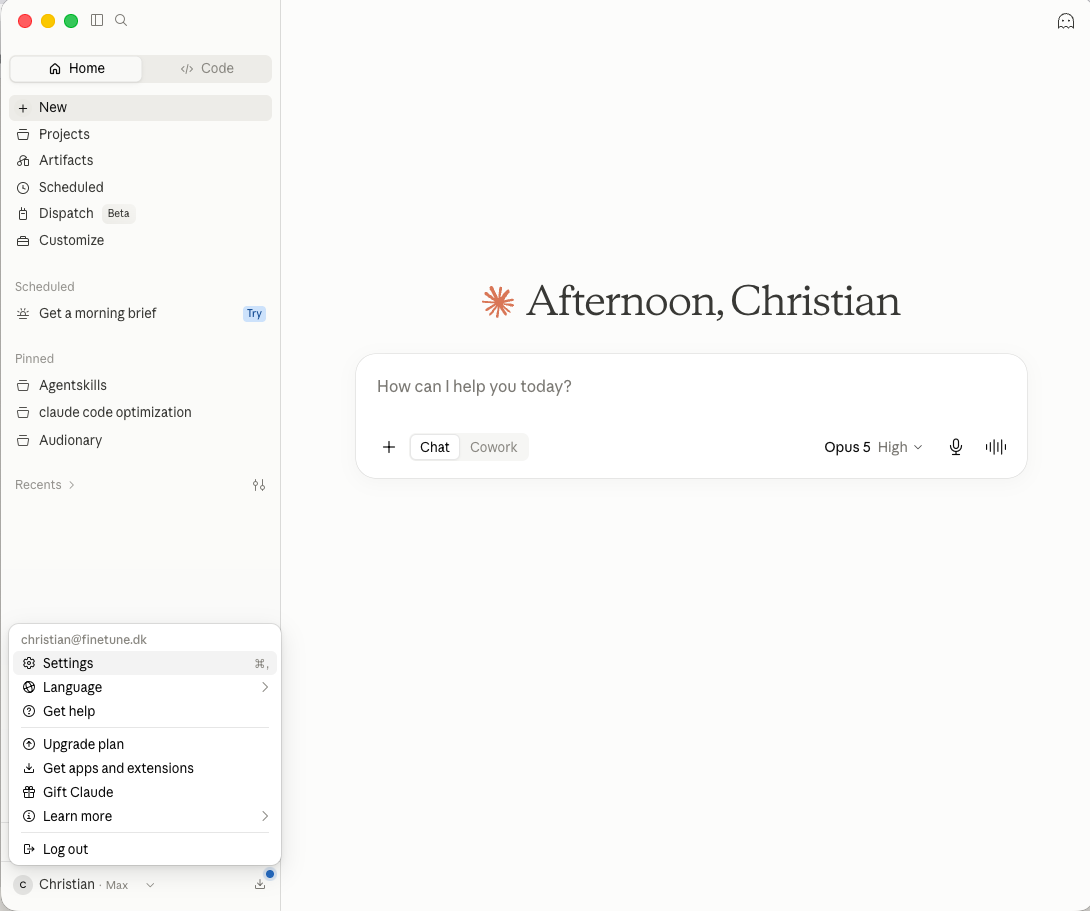
Click your name in the bottom-left corner, and pick Settings in the menu that opens. It works the same on claude.ai in the browser and in the desktop app.
Find Connectors
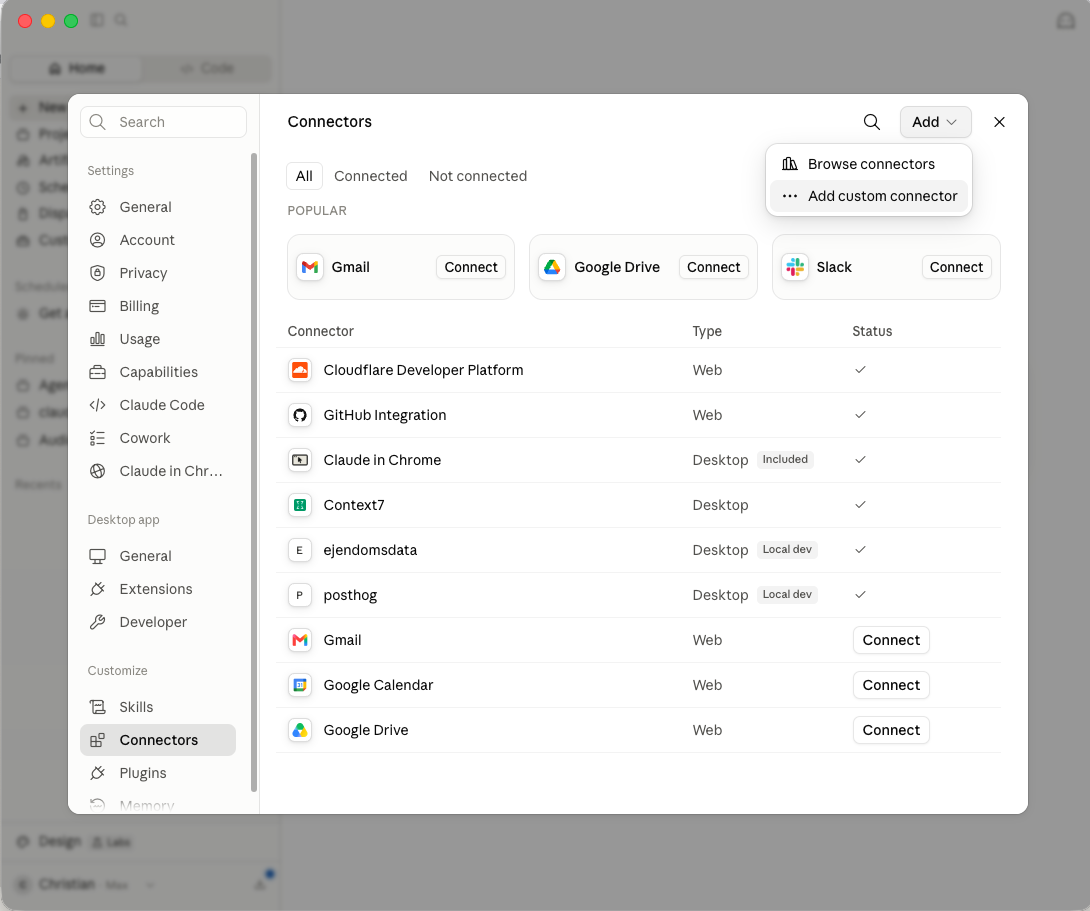
Pick Connectors in the menu on the left (under Customize), click Add in the top right, and pick “Add custom connector”.
Paste the address
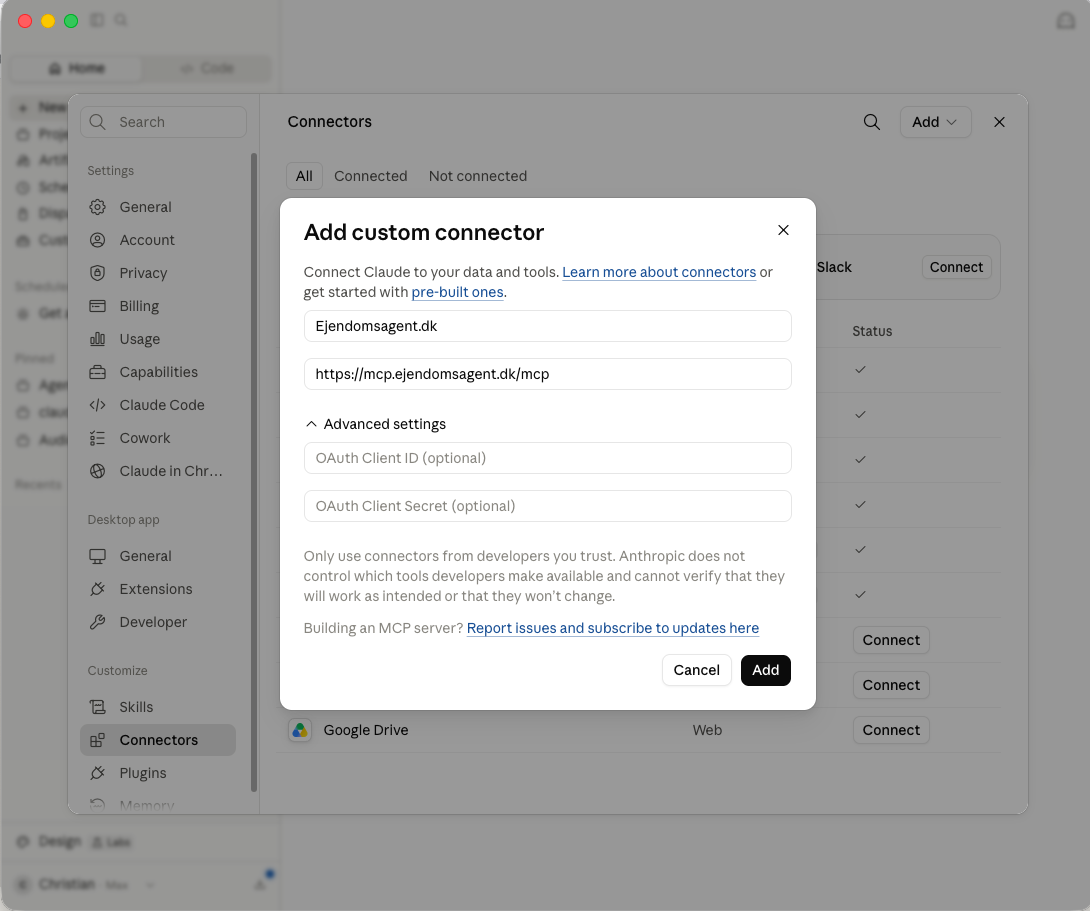
Name it Hue, and paste the address in the URL field. Advanced settings can stay empty. Click Add.
https://hue.finetune.dk/mcp
Connect and approve
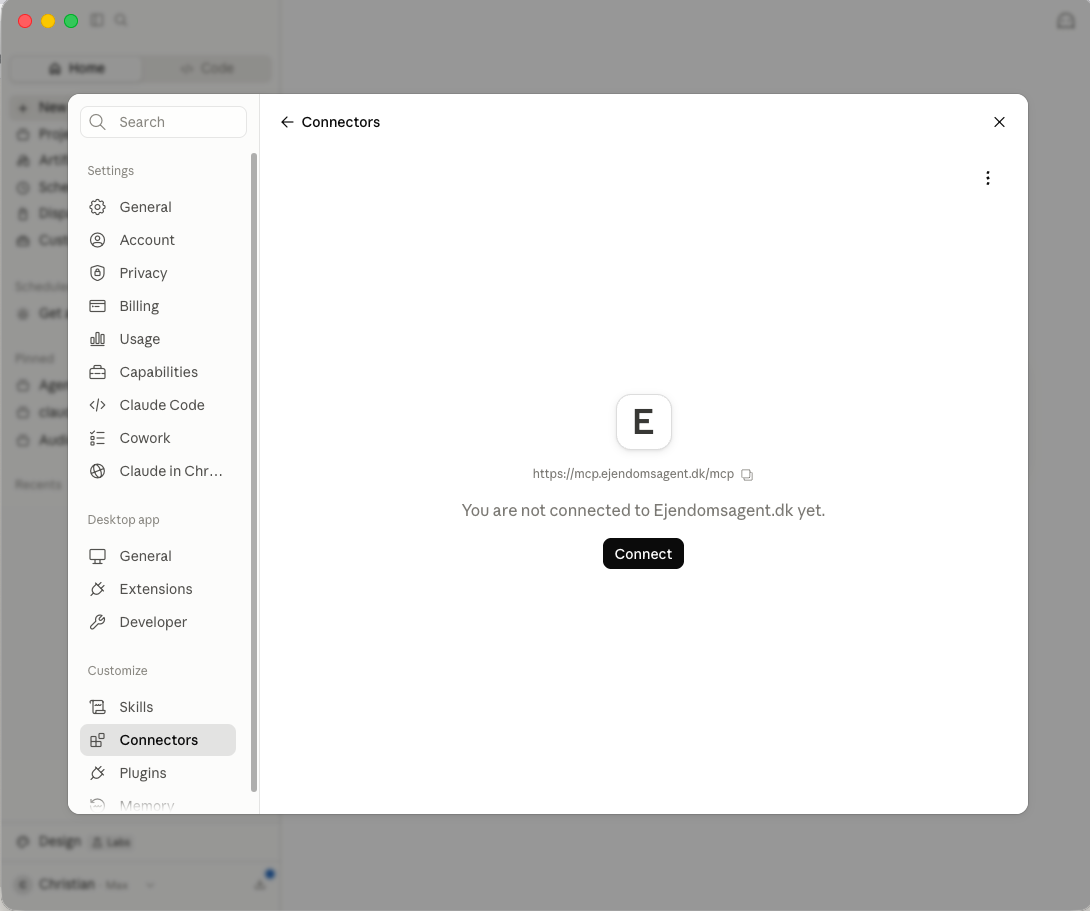
Click the new connector in the list, and click Connect. A login window opens in your browser — sign in, and click “Allow access”.
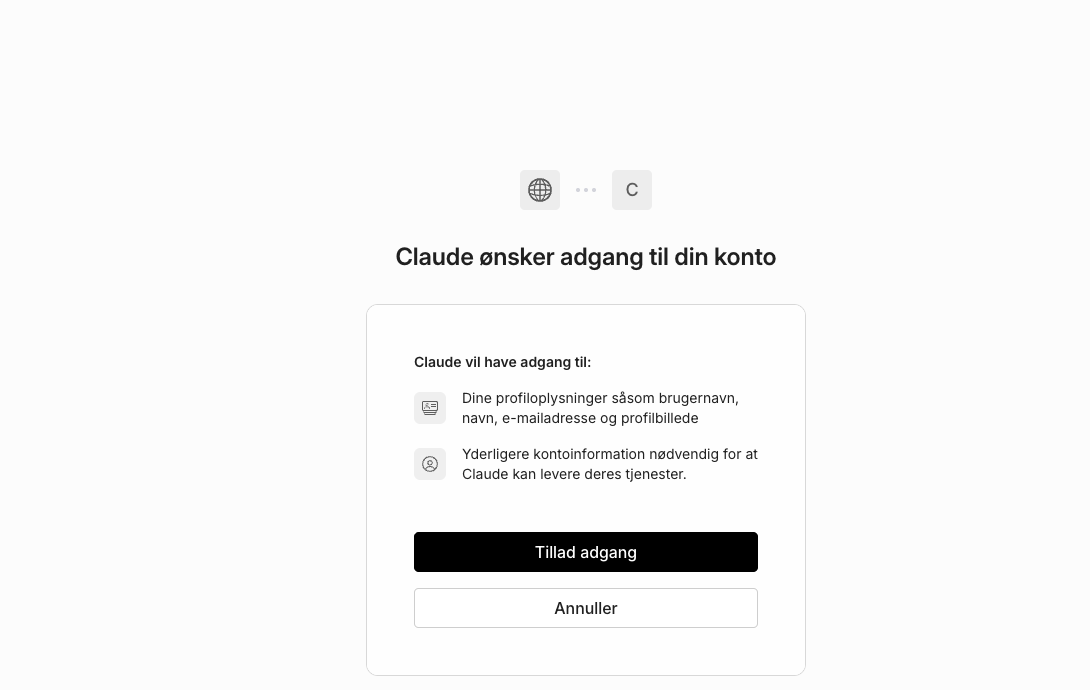
Link your Hue account
Start a new conversation and ask Claude to control a light. The first time, it replies with a personal link instead of doing it. Open the link, sign in with your Philips Hue account, and click approve.
The link is valid for 15 minutes. If it expires, just ask again — you get a fresh one. You only do this once.
Ask away
From now on, Claude controls your lights directly. Rooms, scenes, colors and timers — just say what you want.
Open the settings
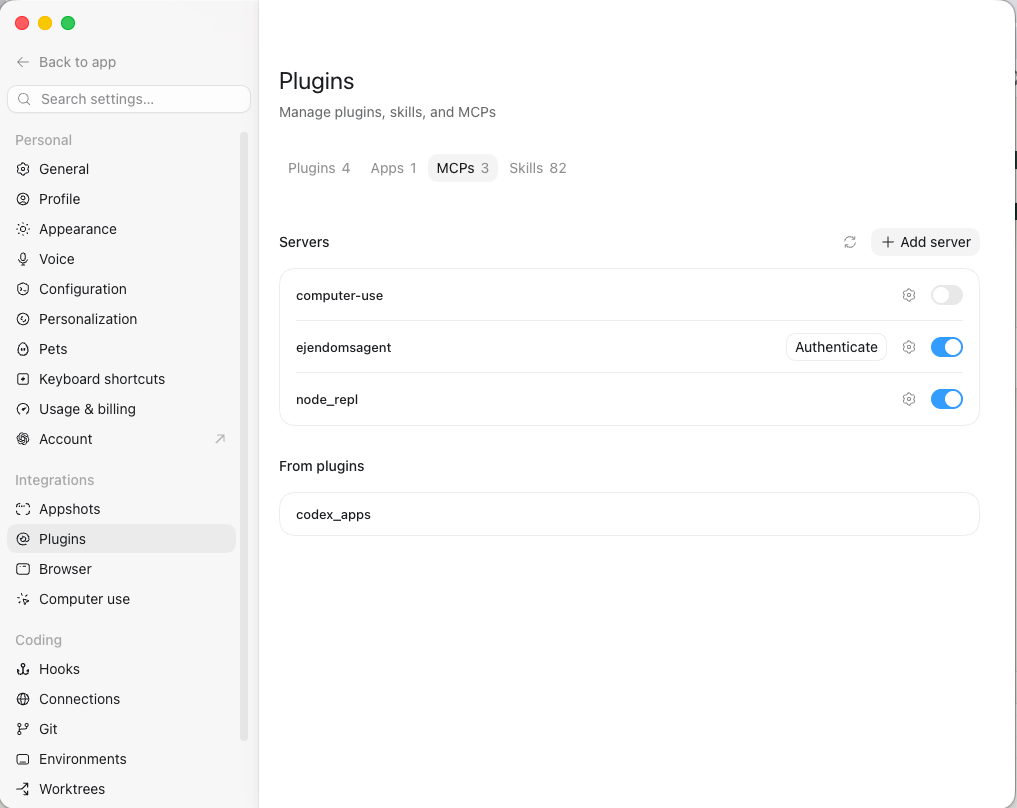
ChatGPT and Codex share the same desktop app today. Click your name in the bottom-left corner, and pick Settings.
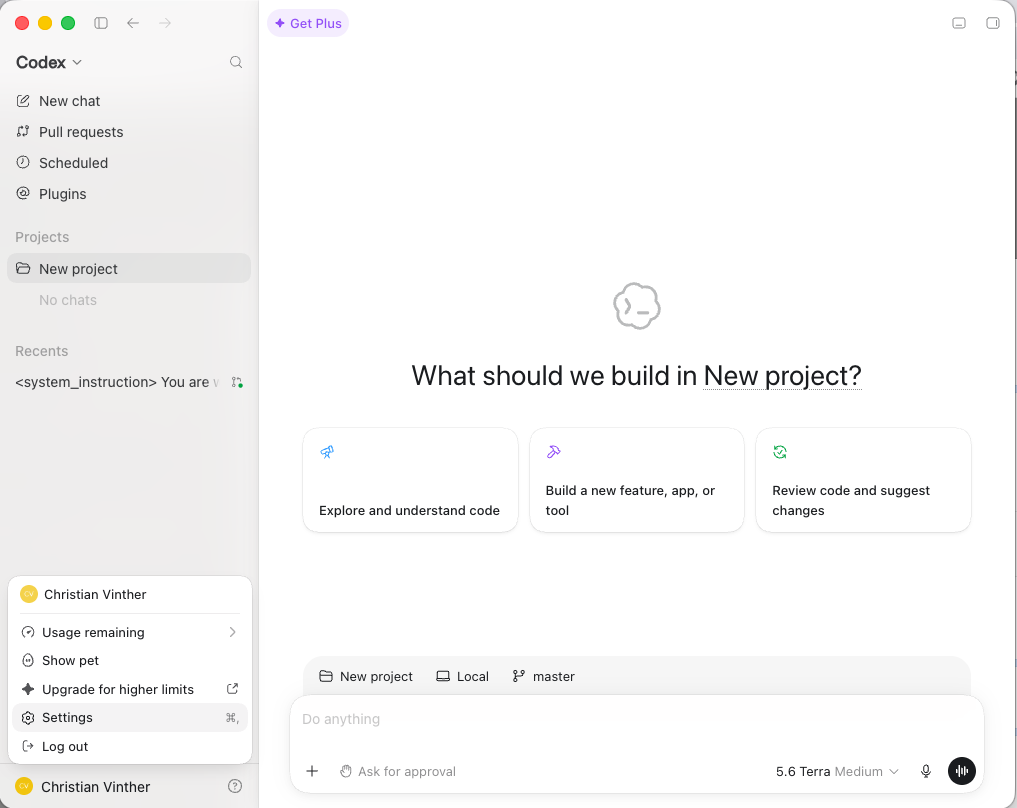
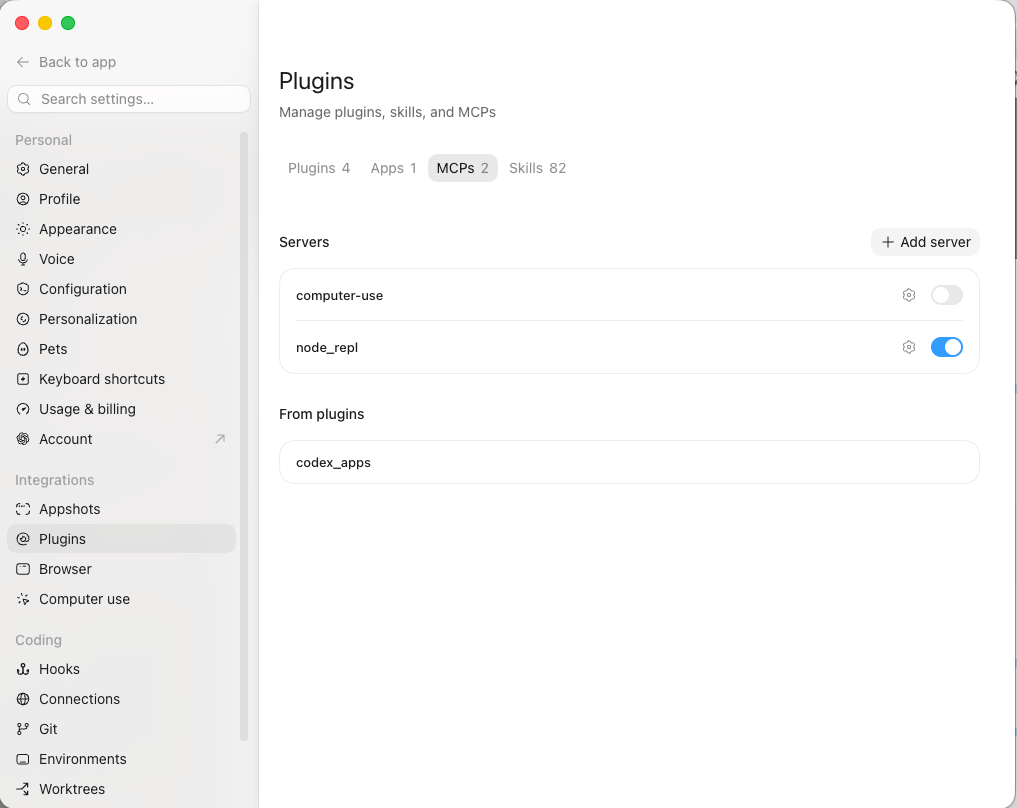
Find MCPs
Pick Plugins in the menu on the left (under Integrations), click the MCPs tab, and click “+ Add server”.
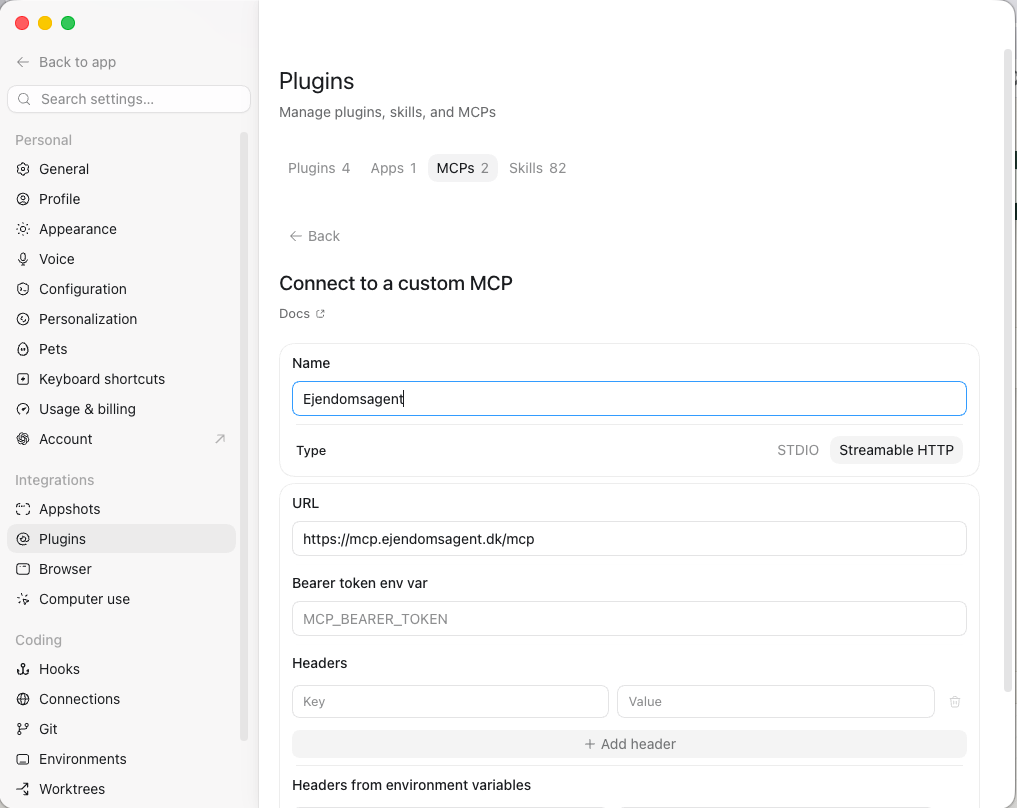
Fill in and save
Name it Hue, pick Streamable HTTP as the type, and paste the address in the URL field. The rest can stay empty.
https://hue.finetune.dk/mcp
Approve access
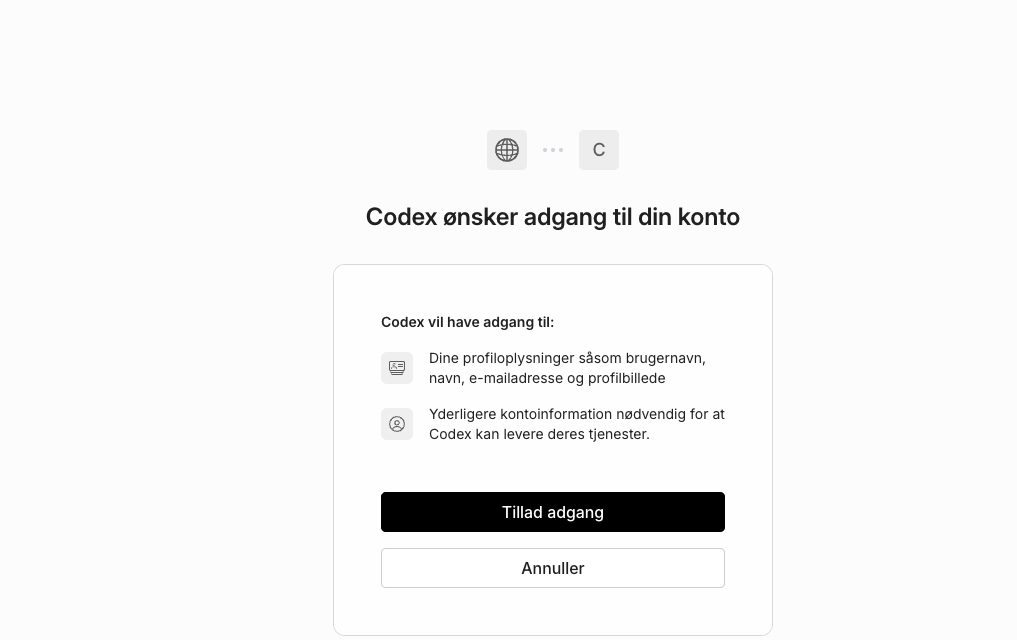
Back in the list: click Authenticate next to Hue. A login window opens in your browser — sign in, and click “Allow access”.
Link your Hue account
Start a new conversation and ask it to control a light. The first time, it replies with a personal link instead of doing it. Open the link, sign in with your Philips Hue account, and click approve.
The link is valid for 15 minutes. If it expires, just ask again — you get a fresh one. You only do this once.
Ask away
From now on, your lights are one sentence away.
Run the command
Open a terminal and run:
claude mcp add --transport http hue \
  https://hue.finetune.dk/mcp
Add --scope user if the server should apply to all your projects and not just the current one.
Sign in once
Start Claude Code, and run /mcp. Pick hue and approve the login in the browser window that opens.
Link your Hue account
Ask it to control a light. The first time, it replies with a personal link instead of doing it. Open the link, sign in with your Philips Hue account, and click approve.
The link is valid for 15 minutes. If it expires, just ask again — you get a fresh one. You only do this once.
Ask away
Write it straight into the conversation.
If something's not working
I can't find “Connectors” in Claude
MCP connectors require a paid plan (Pro or higher) — on the free plan the menu item does not exist at all. Also check that the app is updated to the latest version.
The login window doesn't open
Allow pop-up windows for claude.ai or chatgpt.com in your browser, and try again. In the desktop apps it often helps to restart the app and click Connect again.
It says my Hue account is not connected
Ask it to control a light again — you get a fresh personal link every time. The link is valid for 15 minutes, so open it right away, sign in at Philips and approve.
It can't find my lights or rooms
Open the Hue app and check that your bridge is linked to your Hue account (Settings → My Hue system). The connector reaches your lights through the Hue cloud, so the bridge must be on your account and online.
Something else?
Write to christian@finetune.dk, and we'll figure it out together.